

After celebrating the magnificent and auspicious 100th birthday of our beloved Lord, Bhagawan Sri Sathya Sai Baba, we are filled with great joy as we prepare to carry on His mission with gratitude and humility in the years to come.

To help everyone on this spiritual journey through 2026, the SSSIO volunteers have lovingly created a beautiful 2026 calendar that marks all the important dates and events. This calendar serves as a guide to cherish and prepare for the celebrations in the upcoming year.

Available in two beautiful versions, the calendar can be printed and shared at your Sai Centers. This would also serve as a reminder of Swami coming into each of our homes and hearts.

You can also add these 2026 holidays directly to your iPhone/Android/Outlook calendar. Click here for instructions.

Let us collectively rejoice and make these centenary celebrations a heartfelt offering to our Lord.


The PDFs are ‘print ready’ meaning they have appropriate printing marks in the corners and can be taken for professional printing.

The JPG files are high-resolution and can be printed directly.

The calendars are available in two sizes: 18x24 and A2.

Click/touch the images below to download high-resolution 18x24 JPG files or use the buttons to download the desired versions.
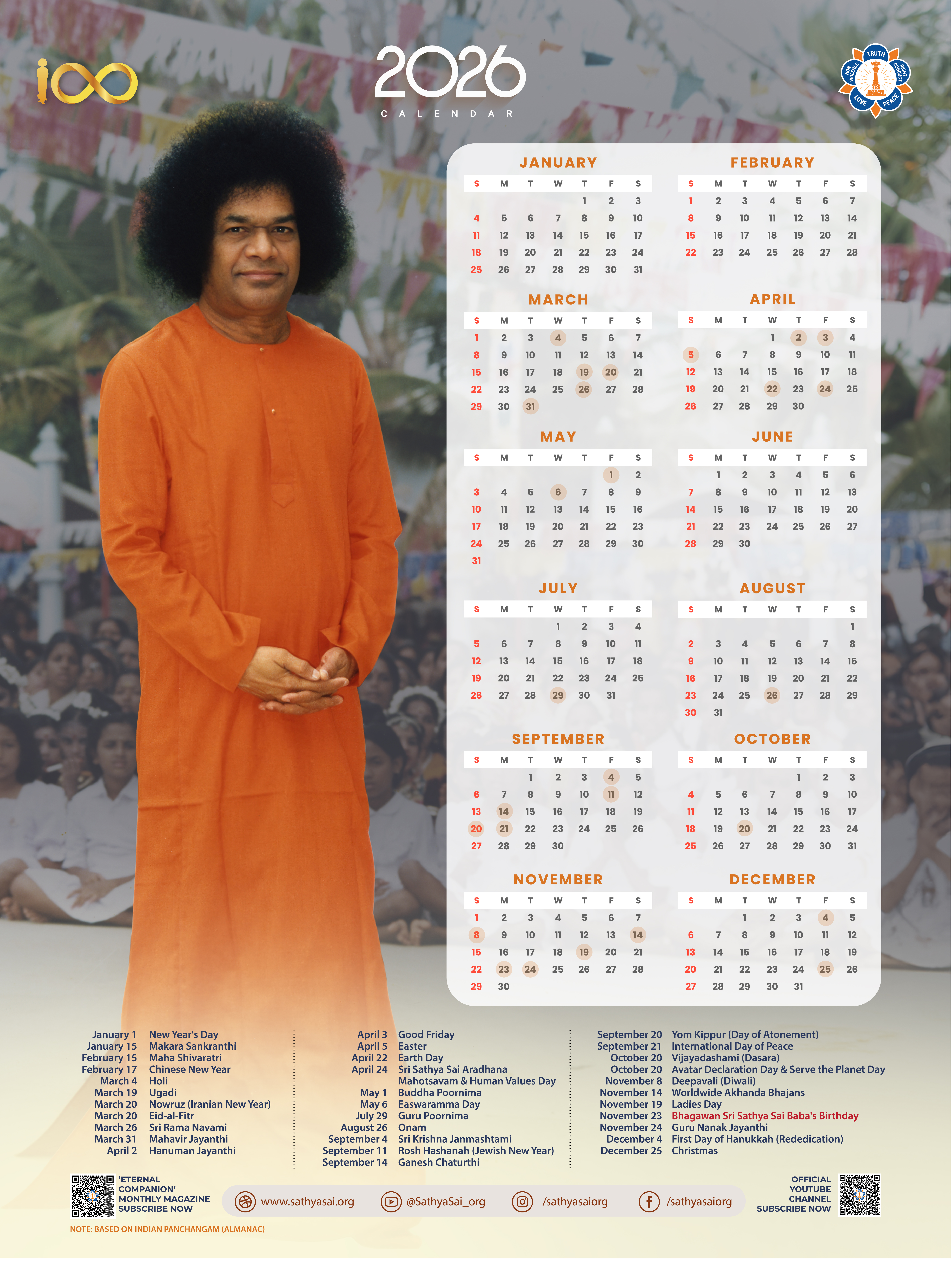
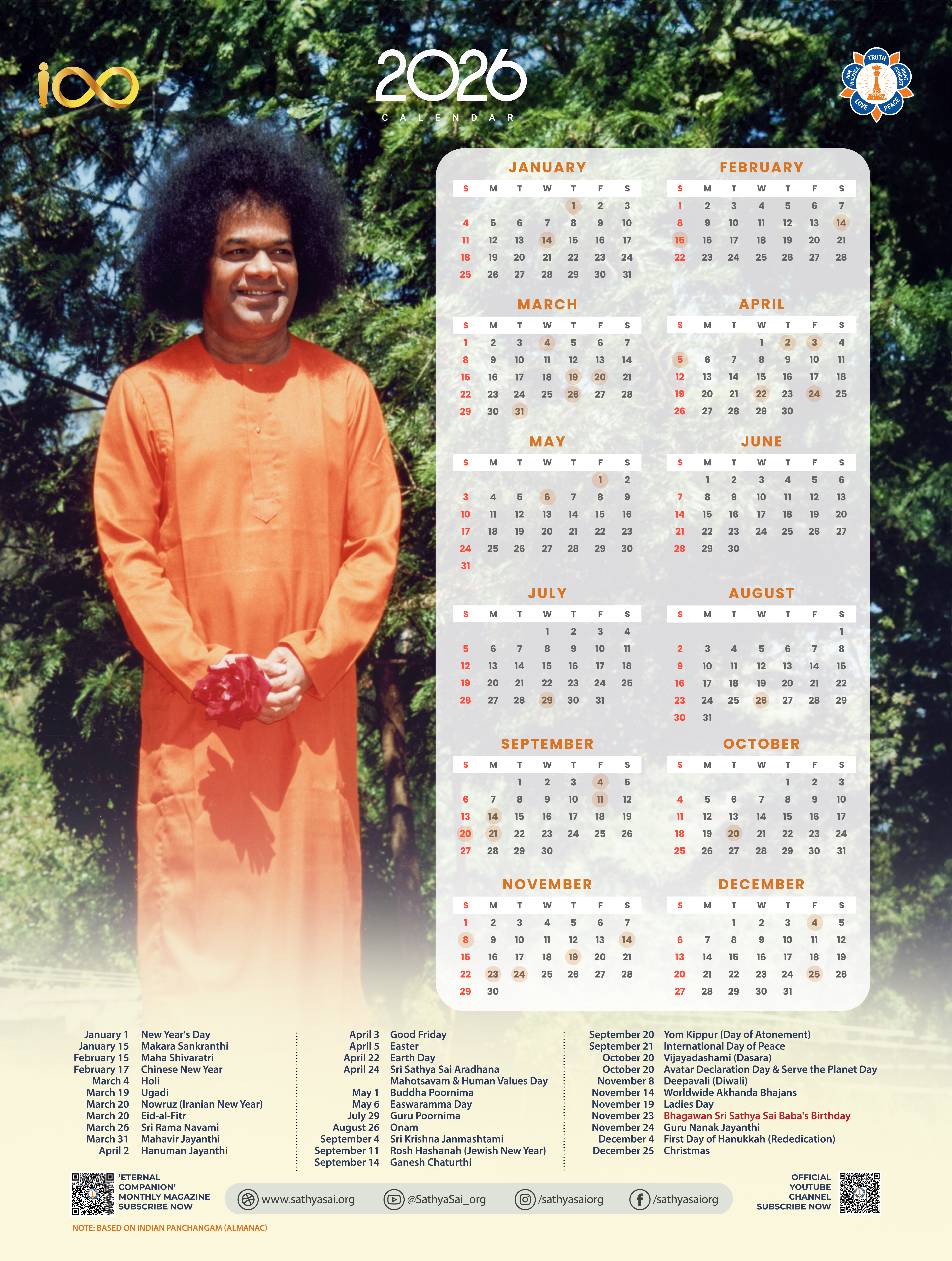
Adding Event Dates to your Device

You can directly update the calendar on your phone by importing the ICS calendar file. Click the button below to open the file or save to your device.

For additional help on importing the holidays directly to your device's calendar, please check for tutorials on YouTube.

  Download ICS Calendar file  

For iPhone / iOS Calendar

✔ Step 1: First create a “Sai Holidays” calendar

  • Open the Calendar app and tap on the bottom right for Calendars
  • Tap Add Calendar at the bottom of the screen
  • Add a new On My iPhone calendar (or iCloud calendar)
  • Name it “Sai Holidays”

Then when importing the ICS, choose that calendar.

✔ Step 2: Import the ICS file into that calendar by clicking the button above.

  • A notification will appear that the website is trying to open a calendar. Allow the calendar to be opened.
  • Select the “Add All” button which will allow you to select which calendar to add these holidays to.
  • Tap “Add to Calendar…” and choose “Sai Holidays” which was made in Step 1.

For Android / Google Calendar

✔ Step 1: Create a dedicated “Holidays” calendar in Google Calendar

  • On your Android phone or computer, open a browser and go to: https://calendar.google.com
  • On the left sidebar, find Other calendars
  • Click the + icon
  • Choose Create new calendar
  • Name it something like “Holidays”
  • Click Create calendar

This calendar will sync to your Android phone automatically.

✔ Step 2: Import your ICS file into that calendar

Still in Google Calendar on the web:

  • On the left sidebar, click the + next to “Other calendars”
  • Choose Import
  • Click Select file from your computer and choose your .ics file
  • Under Add to calendar, choose: “Holidays”
  • Click Import

Google will add all events from the ICS file into that specific calendar.

✔ Step 3: Let your Android phone sync

Your phone will automatically pull in the new calendar within a few seconds.

If you want to force it:

  • Open the Google Calendar app
  • Tap the Calendar menu
  • Scroll to “Holidays” and make sure it’s checked
  • If needed: Settings → Accounts → Google → Sync Calendar

You should now see all the imported events.

For Outlook on the web

✔ Step 1: Create a dedicated “Holidays” calendar

  • Go to Outlook on the web
  • Open the Calendar view
  • On the left sidebar, hover over My calendars
  • Click Add calendar
  • Choose Create blank calendar
  • Name it “Holidays”
  • Make sure it appears under “My calendars”

✔ Step 2: Import the ICS file into that calendar

  • Still in Calendar view, click Add calendar again
  • Choose Upload from file
  • Click Browse and select the .ics file
  • Under Add to, choose your test calendar: “Holidays”
  • Click Import

All events from the ICS file will now populate that calendar.

For Outlook on desktop

✔ Step 1:

  1. Save the ICS file to your computer. Anywhere is fine — Desktop, Downloads, etc.
  2. Double‑click the ICS file. Outlook will open a window showing the events inside.
  3. Click “Open as New” — Outlook creates a separate calendar named after the ICS file.

✔ Step 2 (optional): To rename the calendar to something less technical

  1. Go to Calendar view in Outlook
  2. In the left pane, find the calendar that came from your ICS file
  3. Right‑click the calendar name
  4. Choose Rename Calendar
  5. Type “Holidays” or whatever name you want